


IPTV Player - Smart Live TV
3.937.00 Reviews
App Specs
- Version
- 2.4
- Updated On
- License
- Free
- Downloads
- 10,000,000+
- Developer
- Johran Pastoon App
- Categories
- Video Players & Editors
- Platform
- Android
Screenshots
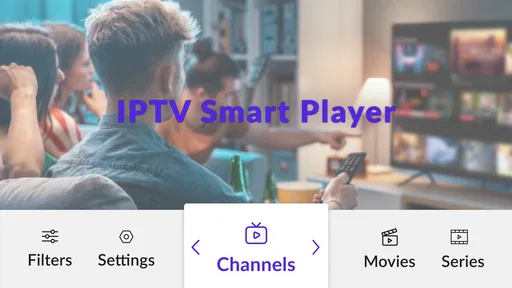
 Analysis by AppCompare
If you're like me, always on the hunt for a way to streamline your TV watching habits, then IPTV Player - Smart Live TV might just be your new best friend. Trust me, the days of flipping through countless channels and dealing with clunky interfaces are over. This app is designed to bring your favorite live TV channels right to your fingertips, and it does so with impressive ease.
The important distinction is that this is a player for playlists you bring, not a shortcut to a ready-made TV service. That makes it useful if you already have an M3U or M3U8 playlist from a legitimate provider, but less suitable if you expect to open the app and immediately find a built-in channel lineup. I’d decide whether I have a playlist I’m entitled to use before installing; that one check can prevent most first-run disappointment.
In practical terms, the app is for people who want one place on a phone or tablet to open their own IPTV stream list. I can imagine using it while travelling, or checking a live channel during a break without turning on the television. It is not a replacement for a conventional streaming subscription that supplies its own shows and channels, and it should not be treated as a source of content in itself. The quality and availability of what you watch depend on the playlist and connection you use.
Getting Started with IPTV Player
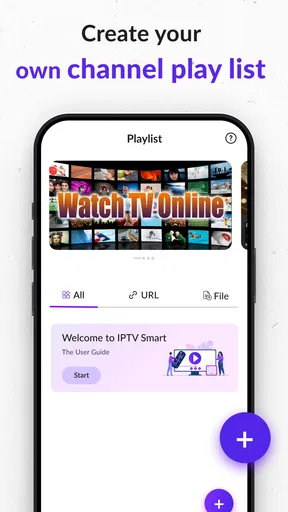
First things first, downloading and setting up IPTV Player - Smart Live TV is a breeze. Available on both Android and iOS, you can grab it from the Play Store or App Store without any hassle. Once you've got it installed, the setup process is pretty straightforward. A few clicks here and there, and you're good to go. The app supports a wide range of formats and playlists, so you can easily import your own or use some of the provided options.
Before importing anything, I’d check that the playlist address or file comes from the provider you intend to use and that it is written or saved correctly. M3U and M3U8 are playlist formats, but a player cannot repair an expired address or turn an invalid list into working channels. If a playlist is supplied as a file, keep track of where it is stored; if it is supplied as a link, copy it carefully rather than retyping a long address. These small checks are more useful than repeatedly reinstalling the app when the source itself is the issue.
There is also a practical choice between keeping a playlist simple and loading a very large one. A long list can be convenient when it contains many channels you actually use, but it can also make it harder to find a particular station. If you have control over the playlist, starting with a focused list for the channels you watch most often makes day-to-day browsing less cumbersome. I’d keep a note of the source and any provider instructions too, so it is easier to tell whether a later failure comes from the list changing or from the device.
User Interface and Experience
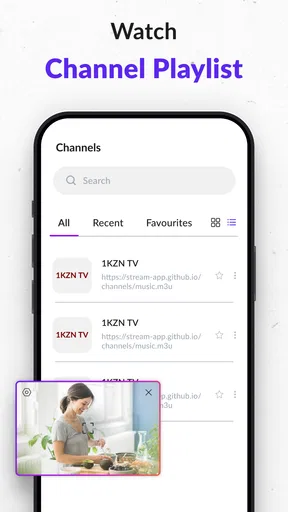
One of the standout features of this app is its user interface. It's slick and modern, making navigation a piece of cake. Everything is laid out intuitively, so even if you're not the most tech-savvy person on the block, you’ll find your way around without breaking a sweat. The channels load quickly, and the streaming quality is top-notch, assuming you've got a decent internet connection.
Worth Reading Before You Choose

Flipboard Shows What News Apps Must Do Beyond the Feed

Switching to Android Auto Means Rethinking Your Driving Routine

Google Calendar Makes a Crowded Week Easier to Manage

Ludo King Makes the Most of the Minutes Between Plans

Baby Panda World Brings Quick Play to Modern Phones, but Its Game Library Feels Busy

ESPN’s Live Game View Makes Following Close Games Easier
For a more realistic expectation, I treat channel loading as a combination of three things: the player, the playlist, and the stream provider. If one channel stalls while others play, I would first suspect that particular stream rather than assume the whole app has stopped working. If every channel struggles, I would check the connection and try again on a different network if available. That simple comparison can save time and gives you a clearer idea of where to focus.
A useful everyday habit is to test one familiar channel before settling in to watch something important. For example, if I planned to follow a live event while cooking, I’d open the playlist a few minutes beforehand and confirm that the stream starts. That is not a guarantee that a stream will remain available, but it avoids discovering a broken source at the exact moment I want to watch. It also helps distinguish a one-off channel problem from a broader connection issue.
What I really appreciate is the ability to customize the interface. You can change themes, adjust the playlist view, and even set up parental controls if you've got little ones around. It's the kind of app that feels personal because it adapts to your preferences.
When browsing feels awkward, I’d make one adjustment at a time rather than changing several preferences at once. That way, it is easier to tell whether a different view actually makes a long channel list easier to scan. For a shared household device, a quick check of the selected playlist and viewing preferences before handing it to someone else can also prevent confusion. Personalization helps most when it makes the channels you use easier to reach, not when it becomes another setup project.
Features That Stand Out
Now, let's dive into the features that make IPTV Player - Smart Live TV a must-have. First up, the app supports EPG (Electronic Program Guide), which means you can see what's playing and what’s coming up next across all your channels. No more guessing games or missing out on your favorite shows.
For an electronic program guide to be useful, the channel information needs to line up with the playlist and its schedule details. If a guide appears incomplete or mismatched, I would check the playlist or provider’s guide information before assuming that the channel itself is unavailable. A guide is a convenience for choosing what to watch; it does not make a stream work when its source is offline. I’d use it as a helpful reference, while keeping the channel list available when program details are missing.
Another cool feature is the ability to record live TV. Yes, you heard that right! You can record your favorite shows or events and watch them later at your convenience. It's like having a DVR right on your phone. Plus, the app offers multi-screen support, so you can watch different channels on different devices simultaneously. Perfect for households with diverse viewing preferences.
Those capabilities sound appealing, but I would not make a viewing plan depend on them until I had checked how they work on my own device and with my chosen streams. For an important programme, the safer routine is to test the intended workflow ahead of time and leave enough device storage and battery for the session. Multi-device viewing also depends on the stream source and the devices involved, so it is sensible to test whether a household’s actual setup supports it rather than assuming every playlist permits simultaneous use.
That distinction matters when comparing IPTV players with conventional TV apps. A provider’s own app may be the easier choice if you want a ready-to-watch catalogue, account-based support, and a familiar channel guide without managing a playlist. A general video player may suit saved video files better. This app’s appeal is narrower: it gives a home to compatible playlists, which can be more convenient for someone who already has one and less convenient for someone who wants content included.
Performance and Reliability
In terms of performance, IPTV Player - Smart Live TV is pretty solid. The app runs smoothly, and the streaming is generally buffer-free. Of course, this can depend on your internet speed, but assuming you've got a stable connection, you shouldn't face any hiccups.
If playback stops, I’d use a short troubleshooting sequence instead of changing everything at once. First, try another channel from the same playlist. Then check whether the connection is working normally in another app. If other online video also struggles, the network is a more likely place to investigate; if only one IPTV channel fails, the stream or its playlist entry is a better first suspect. Reopening the app and checking that the playlist is still available are reasonable next steps before removing and adding it again.
When a stream works on one connection but not another, that is useful information rather than proof that the player is faulty. Network restrictions, temporary outages, and provider-side changes can affect access. I’d also avoid sharing a private playlist address casually: treat it like access information from the provider, and use only sources you are authorized to view. These are straightforward precautions, but they make playlist-based viewing easier to manage responsibly.
What’s more, the app is regularly updated to fix bugs and introduce new features, which is always a good sign of reliability. The developers seem committed to improving the user experience, and it shows.
For context, this is a free video player from Johran Pastoon App. It has an average rating of 3.8 from around 2.3K ratings, with 1M+ installs; those figures suggest it has attracted a sizeable audience, though they do not tell me whether a particular playlist will work well. The current version is 2.1, it is rated for Everyone, and it requires Android 7.0 or later. It was released on Dec 26, 2025. I’d still check that my device meets the system requirement and that I have a valid playlist before treating installation as the only step needed.
Because the player relies on user-supplied playlists, the most useful question after an installation problem is not simply “Is the app broken?” I’d check whether the app opens, whether the playlist imports, and whether a stream starts as separate stages. If the app opens but the list does not appear, focus on the import method and playlist source. If the list appears but a channel fails, test another entry. If several online services are also unreliable, look at the connection. Separating those symptoms keeps troubleshooting grounded and avoids unnecessary resets.
Choosing It for the Right Situation
I’d recommend this app most readily to someone who already has a legitimate M3U or M3U8 playlist and wants to watch it from a mobile device. It can be a practical option for a commuter checking a familiar channel, a traveller who has access to a suitable connection, or a household member who prefers a phone to the main television. The key advantage is control over the playlist you bring; the trade-off is that you also need to manage that source and its reliability.
I’d skip it if I wanted a complete entertainment service with channels, films, and programmes ready to browse immediately, or if I did not know where to obtain a playlist I’m allowed to use. In those cases, a licensed broadcaster’s app or a conventional subscription service is a better fit because it supplies the viewing content directly. Someone mainly organizing locally saved videos may also prefer a standard media player designed around files rather than live playlist streams.
For a common evening scenario, imagine that I want to watch a channel while another person uses the living-room television. I would make sure my playlist is available, connect to a dependable network, and open a known channel before the programme begins. If it fails, I would test another channel rather than immediately rebuilding the playlist. If the second stream works, I can keep watching and investigate the first entry later; if neither works, checking the network and source is the more sensible next move. That is the kind of modest, practical workflow where a playlist player can be useful without promising more than it controls.
Final Thoughts
All in all, if you're looking for a convenient way to watch live TV on your mobile device, IPTV Player - Smart Live TV is a fantastic option. Its user-friendly interface, impressive feature set, and reliable performance make it a standout choice in the crowded world of streaming apps. Whether you're a cord-cutter or just someone who loves having access to their favorite channels on the go, this app won’t disappoint.
So, why not give it a shot? Download it today and revolutionize the way you watch TV. It’s like having your personal TV station in the palm of your hand. Happy watching!
Pros
- Simple and intuitive user interface.
- Supports various playlist formats.
- Fast channel switching.
- High-quality video streaming.
- Customizable channel organization.
Cons
- Limited EPG support.
- Ads in the free version.
- No built-in search function.
- Requires manual playlist entry.
- No offline viewing option.
FAQs for IPTV Player - Smart Live TV
What is IPTV Player - Smart Live TV, and how does it work?
IPTV Player - Smart Live TV is an application that allows users to stream live television channels over the internet. It works by utilizing IPTV (Internet Protocol Television) technology to deliver TV content directly to your device. Users can add playlists from their IPTV providers to access a wide range of channels, including sports, news, and entertainment.
Is IPTV Player - Smart Live TV free to use?
IPTV Player - Smart Live TV offers both free and paid features. While the app itself can be downloaded for free, users may need a subscription or access to IPTV service from a third-party provider to stream content. Some features, such as ad-free viewing or additional channel options, might require in-app purchases or a premium subscription.
On which devices can I use IPTV Player - Smart Live TV?
IPTV Player - Smart Live TV is available for both Android and iOS devices. This includes smartphones and tablets running these operating systems. Ensure your device meets the app's system requirements to enjoy a smooth streaming experience. Compatibility may vary based on device model and OS version.
Is IPTV Player - Smart Live TV legal and safe to use?
The legality of using IPTV Player - Smart Live TV depends on the source of the IPTV streams. The app itself is legal to download and use. However, accessing copyrighted content without permission may be illegal in some regions. Always ensure that you have the rights to view the content you are streaming to avoid legal issues.
How can I add playlists to IPTV Player - Smart Live TV?
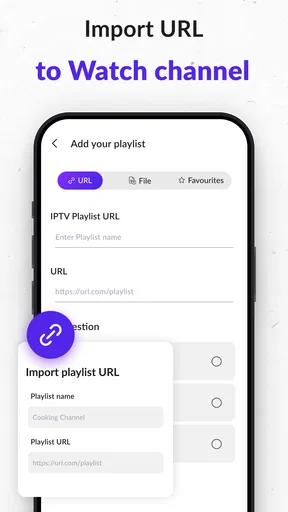
To add playlists in IPTV Player - Smart Live TV, you need to obtain M3U or similar playlist files from your IPTV provider. Once you have the playlist URL, you can enter it into the app by navigating to the settings or playlist section. Ensure that the playlist is compatible with the app for seamless streaming.


